# Systems & Programming Fundamentals
# Roadmap Overview
#### **Preface**
This roadmap is a personal project that I'm working on as a way to document my journey learning about the world of systems and programming. While I have done some self-studying and know a few things about systems, I'm nothing more than a jack of all trades with shallow knowledge. But all of the knowledge and experience I've gained over the past 3 years has led me to creating this roadmap that I plan to follow.
When I first started to self-study programming, I knew nothing about what was out there, I knew that I was interested in software engineering and robotics, but I hadn't the slightest idea of how to get there. Now I know the path I need to follow to get there, but first I wanted to pursue my interests in Systems, Networking and General Programming.
That's when I realized that this was the perfect time to master the fundamentals starting all the way from System Administration with Linux to covering Computer Networking then Cloud Technologies and finally diving right back into Computer Science.
I am sharing this roadmap of mine as a way to showcase my learning journey starting from Systems & Networking to Computer Engineering and I hope that others who read this may find something that they can take away for themselves.
#### **The Main Topics**
The roadmap, as of now, consists of 5 main topics with each major category containing their own sub-topic.
- **Systems & Networking Fundamentals**
- **Intro to Programming**
- **Containers & Orchestration**
- **Intro to Computer Science**
- **System Programming**
The intended flow of the roadmap is to go through each major category and work on every sub-topic then do the associated projects for each section. All of this culminates in a final capstone project that will put your understanding of the category to the absolute test.
#### **roadmap.sh explanation**
[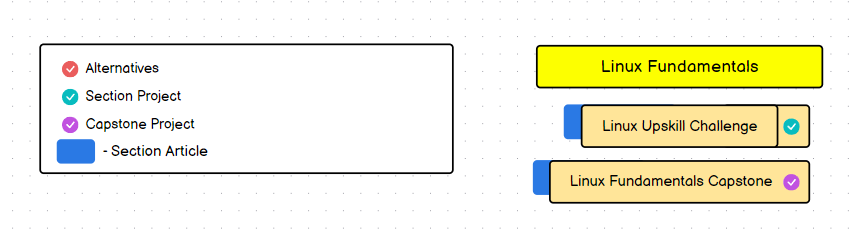](https://lab-book.01blu3.com/uploads/images/gallery/2023-11/pSUAkNfHWwdF34Oe-roadmap-sh-outline.png)
The philosophy of this roadmap is taking the long-game approach to studying. A big mistake we often make in learning is that we will cover a subject just enough to scrape by. While you don't have to know everything about a subject to be able to do interesting things, when it comes to our foundations true understanding is essential.
So, to remedy this, we will cover each major topic in just enough depth to get a strong grasp of the basics. The **blue button** behind every sub-topic will link to the full article in the Lab-Book. Meanwhile the actual **sub-topic** will cover a brief summary of the course, video, or book we will be working through. It will also include relevant resources. While not pictured here, the **Alternatives** section will provide other courses/videos that work as a roughly equal substitute, but they may also both be taken.
The best way to truly cement one's knowledge on a topic is by doing, and so the **turquoise-colored checkmark** ✅ next to the sub-topic will be where we begin our section project work. Lastly, we arrive at the **Capstone Project** ☑️, this is a section dedicated to putting all of the knowledge we have learned to the test. The Capstone Project will either be a single large project or a series of projects that puts everything we have learned together. Lastly while not pictured, there will be a **dark-blue checkmark** next to courses/books that are optional but may be worthwhile depending on your use-case.
#### **✨****Personal Note**
Throughout this journey I will do my best to be as objective as I can. However, I am still in the middle of my learning and I am only human. While technology itself is neutral, the way we use it, how we think about it, what we think is best moving forward and so on, are things that are human viewpoints. There are of course times when things are simply 0 or 1, but as you go through your own journey you will find that you will have to come up with your own definitions and reasons for doing things backed by personal preference or well researched analysis or simply that's the way things are done.
So, to carry on with that spirit I will place the **sparkling star icon✨** whenever certain notes or topics are things I am speaking my own mind on. I encourage you to come up with your own analysis or thoughts on those topics.
### [**The Roadmap**](https://roadmap.sh/r?id=656159c15145316d256b17d4 "roadmap.sh roadmap")
In **The Roadmap **below. All of the time estimates are based on studying the material for 2-3 hours per day.
**Legend**
\- 🔄️: **Alternatives** | - ⏭️**Optional **
#### **System & Networking Fundamentals**
A system can be defined as a set of parts working together, and a network as a group or system of interconnected things.
The aim of this path is to familiarize ourselves with Linux & Computer networking. We'll learn to both configure and administer our very own Linux Servers, write powerful scripts, and come away with a sys-admin’s eye and toolset. We’ll also gain a solid foundation in computer networking, uncovering the Blackbox that the internet often seems to be, learning about various protocols, topologies, and architectures.
At the end of this path, we’ll be able to call ourselves a jr sysadmin and jr network-engineer.
#### **Linux Fundamentals**
- [**( Online Course ) Linux Upskill Challenge**](https://lab-book.01blu3.com/books/systems-programming-fundamentals/page/the-linux-upskills-challenge)
- The Linux Upskill Challenge in my eyes is the perfect introduction to Linux.
- It is a month-long course that will get you up-to speed with Linux and give you enough skills to start managing your own servers as well as give you the tools you need to set up services like WordPress or your own Wikis like this bookstack instance. It also has references to more in-depth material if you find that the base challenge is too easy.
- **Estimated Time :** 21 days - 1 month
- [**( Book - O'Reilly ) Learning the UNIX OS**](https://lab-book.01blu3.com/books/systems-programming-fundamentals/page/learning-the-unix-os)
- A short and sweet book on the Unix OS by O'Reilly. The book may be over 20 years old but there's still a lot of value to be gained.
- This book will give you a good overview of the Unix OS and by extension Linux, as well as providing some interesting history lessons. After covering this book, I became a lot more comfortable working with Linux, and it has led to some great quality of life improvements.
- **Estimated Time :** 7-10 days
- ** ( Online Course ) Linux Journey**
- We will be wrapping up our Introduction to Linux with Linux Journey. While we should be pretty comfortable with Linux by now, there are still quite a few things left to cover.
- Things like Networking, Processes Monitoring, The Kernel, and other important things to know. Once we finish going through this, we will be ready to start taking our first steps towards Linux System Administration.
- **Estimated Time :** 7-14 days
- **( Book - O'Reilly ) Learning the bash Shell**
- Now that we are familiar with Linux and have started managing our own servers and home-lab we're ready to begin taking full advantage of shell scripting. In essence shell scripting is about automating repetitive tasks: These can range from backing up files to monitoring logs & system resources, updating devices, and managing accounts.
- If done right, scripting can save you many hours in the long-run and you may start to create a collection of scripts that you'll end up using for years.
- **Estimated Time :** 15 days
- **( Book 🔄️ ) UNIX and Linux System Administration Handbook**
- Now that we are comfortable with the Linux environment and have shell scripting under our toolbelt we are finally ready to take on the world of Linux System Administration.
- This book will serve as a guide to understanding how Linux System Administration works. The main things we will be covering are System Administration, Networking, Storage & Ops.
- **Estimated Time :** n/a
- **( Book 🔄️ ) The Debian Administrator's Handbook**
- I'm a big fan of using Ubuntu & Ubuntu Server for my projects and homelab. The Debian Admins handbook works as a free alternative to the handbook mentioned above.
- **Estimated Time :** n/a
- **Linux Fundamentals Capstone Project**
- **WIP**
- **Estimated Time :** n/a
#### **Networking Fundamentals**
- **( Online Course - FreeCodeCamp ) Intro to Computer Networks**
- Intro to Computer Networks is less hands-on than the other previous courses. The reason for this is that the CCNA will cover a lot of new material and will require a lot of labbing throughout the course.
- We will be going through FreeCodeCamp's Computer Networking course as well as some articles that cover the basics of computer networking.
- **Estimated Time** **:** n/a
- **( Books & Online Courses ) Cisco CCNA**
- We now begin the CCNA. For a lot of people this will be one of the more difficult things to get through, at least in regards to IT.
- This is where we will learn about routing and switching, wireless networking, and security. Which will be followed up by a small tour of what's possible with automation and programming.
- In summary, the CCNA is a true introduction to Computer Networking. However the world of Computer Networking is incredibly vast. If Intro to Computer Networks was a foreword then the CCNA can be seen as a prologue.
- **Estimated Time :** n/a
- **( O'Reilly ) Network Warrior**
- Now that we've gone through the CCNA, we're ready to round out our foundational networking knowledge with O'Reilly's Network Warrior.
- Network Warrior focuses on covering the other half that the CCNA overlooks. And that's the focus on the fundamentals with practical applications. Instead of going through hypothetical scenarios, we'll be taking a look at real networks you would find out in the field.
- **Estimated Time :** n/a
- **( No Starch Press ) Practical Packet Analysis**
- At this point we should have a strong understanding of how networking works. and have now started to unravel the veil that is computer networking.
- But there's one major thing we're missing, we know how to troubleshoot, configure & design networks. But do we really understand what sort of data is flowing through our network?
- When we connect to a site what sort of traffic is generated, who's generating it? What requests are being made & who's receiving them? It's finally time to learn what's really going on in our networks.
- **Estimated Time :** n/a
- **( Helsinki MOOC ) Core 5G and Beyond**
- Initially I was going to consider this portion optional but when you considering that over 55% of internet traffic comes from mobile devices, cellular networks are not something that can just be ignored.
- This course from Helsinki gives a general overview of how mobile networks work, everything from LTE to 5G and beyond. This course will be mostly theoretical in nature but there will be some limited hands on labs.
- **Estimated Time :** n/a
- **Networking Fundamentals Capstone Project**
- **WIP**
- **Estimated Time :** n/a
#### **Intro to Programming & Automation**
- **Definition of Programming - "Programming is the process of writing instructions for a computer to execute"**
- **The Python Philosophy - "Simple is better than complex"**
This is by no means an introduction to computer science, that will be something to cover later. Instead, this path is all about easing us into computer programming. We'll be learning about the absolute basics of programming and some automation as well. We'll also cover Databases learning about CRUD and Data-In/Data-Out, then finally rounding things out with version control.
By the end of this path we'll have taken our first steps in programming.
There's still a long way to go before we can call ourselves software developers much less engineers, but bit-by-bit we are getting there.
#### **Intro To Programming**
- **( Helsinki MOOC ) Python Programming**
- "Simple is better than complex" - Python is an all-purpose programming language that focuses on being both simple and readable. It's a powerful tool used everywhere from Web Development to Automation and System Administration, to Data-Science & Scientific Computing the list goes on.
- This simplicity and power are the reasons why we're taking our first steps into programming with Python.
- The Helsinki MOOC will get us acquainted will the necessary basics, serving as a foundation for the future.
- **Estimated Time :** n/a
- **( No Starch Press ⏭️) Automate the Boring Stuff With Python**
- Going through this book is entirely optional, but if you often find yourself doing repetitive tasks: whether it be at your job, doing personal projects or anything else, I would say it's a book that's worth your time.
- **Estimated Time:** n/a
- **( Books & Online Courses ) Intro to MySQL**
- Learning how to effectively work with databases is important, much of software engineering involves CRUD and data-in/data-out operations. That's not even considering the importance of effectively collecting and reading data.
- In this book and course, we'll learn how to structure data within a database and come away with enough knowledge to understand and work with data-oriented tools.
- **Estimated Time:** n/a
- **( Articles & Online Courses ) Git**
- Git is a version control system. Version control tracks any changes made to a code base, so a version control system tracks changes to a file or set of files over time.
- Since Version Control Systems keep track of every change made to a code base, if any mistake is made in a new version, we're able to roll back to a previous working version. This allows us to experiment with new changes and configurations without fear of disrupting a system entirely.
- This makes git a powerful tool for managing codebases, scripts, configuration files and more.
- **Estimated Time:** n/a
- **Intro to Programming Capstone Project**
- **WIP**
#### **Containers & Orchestration**
#### **Docker**
- **Hypervisors**
- **Containers**
- **DevOps with Docker**
- **Docker Capstone Project**
#### **Kubernetes**
- **Intro to Orchestration**
- **Kubernetes**
- **Kubernetes Capstone Project**
#### **Intro to Computer Science**
#### **Programming**
- **Harvard's CS50**
- **Programming Capstone Project**
#### **Hardware Fundamentals**
- **Code: The Hidden Language of Computer Hardware and Software**
- **Computer Principles**
- **From Nand To Tetris**
- **C Programming**
- **Hardware Fundamentals Capstone Project**
#### **Computer Systems**
#### **Systems**
- **Data Structures in C**
- **UC Berkeley - CS61C Great Ideas in Computer Architecture**
- **Software Construction**
- Operating Systems
- System Capstone **Project**
#### **Linux Programming**
- **How Linux Works**
- **Advanced Programming in Unix**
- **Linux Programming Interface**
- **Linux Programming Capstone Project**
# Linux Fundamentals
# The Linux Upskills Challenge
[](https://linuxupskillchallenge.org/ "Linux Upskill Challenge Title page")
##### **Course Overview**
We begin our journey into Systems and Programming with the [**Linux Upskill Challenge**](https://linuxupskillchallenge.org/) ( [**GitHub** ](https://github.com/livialima/linuxupskillchallenge))
This challenge is a great way to take our first steps into Linux. It is a month long commitment that you can follow at your own pace, but if you dedicate 2-3 each day it will take you roughly 21 days to complete the challenge.
For our purposes we will be using the Challenge to as a way to learn Linux for the first time and to also begin building on our Linux Command Line Skills.
##### **Goals of this Course**
- Set up your own Linux Server either **on the cloud** or **locally** on your own machine
- Learn to Navigate the **Linux File System** & learn about the **Linux File Hierarchy Structure** ( **LFHS** )
- Cover the basics of the powerful **vim** text editor
- Set up your own web server with **Apache** and set up some traffic rules with **ufw**
- Understand how to filter information with commands like **grep, cat, more, less, cut, tail, etc.**
- Learn about various file transfer protocols from **SMB** to **SFTP** and more
- Grasp the basics of permissions involving users and groups
- Ubuntu Universe vs Multiverse
- Learn about Archiving & Compressing and how to build from source
- **Inodes, symlinks** and other shortcuts
- Get a brief introduction to shell scripting
##### **Course Notes**
The Linux Upskill Challenge has a lot of great concise and detailed explanations for all of the topics they cover. Which makes it pretty hard to make any notes that wouldn't just be a copy & paste.
As a middle ground the following notes are commands and information I found particularly useful.
A quick note for people who are windows users!
Some of you may be using WSL to access your cloud instance. You might experience clock-drift on your device making you unable to access to the cloud CLI. If this happens try running the following command in the block below.
This should serve as a temporary fix to your clock-drift but I would recommend looking online for a more permanent solution.
```
sudo hwclock -s
```
**The ls command and its switches**
\- ( **-l** ) : lists directory contents
\- ( **-a** ) : lists hidden files
\- ( **-t** ) : lists by date created
\- ( **-r** ) : lists in reverse order
**Some notes on Sudo & Root Best practices **
\- Don't leave root open
\- Be careful of using sudo to open GUI applications, if you have to, use **sudo -h**
\- /etc/shadow : A very important space that stores information about the user passwords on a Linux system
\- Hackers can't auto-crack if root is locked down
**Commands used to find files**
**- locate | find | grep | which
Ownership and Permissions in Linux**
- **ls -ltr** is a good way of showing who owns what files and what permissions they have
\- **chmod**
\- **u** = **user** | **g** = **group** | **o** = **others** **| a = all
\- ( + ) = add permission | ( - ) = remove permission | ( = ) = set permission
\- r = read | w = write | x = execute
\- u = user | g = group | o = others | a = all
\- 1 = execute | 2 = write | 4 = read
examples:
- chmod u+w hello.txt |** Gives user write permissions to the hello.txt file **- chmod 777 hello.txt |** Gives read write and execute permissions to everyone
**Important File Transfer protocols**
Linux can share files through a variety of protocols. These 3 are key protocols to keep in mind
**- SMB:** Microsoft file sharing, useful on a local network of Windows Machines **- AFP:** Apples file sharing, useful on a local network of Apple Machines **- SFTP:** Access & transfer files over SSH**
**You can get practice with vim by running **vimtutor**
Turn a file into a bash script with **\#!/bin/bash**
##### **Required Reading**
The required reading section in the Linux Upskill Challenge covers all the material you need to get started. I added setting up SSH login as required since the challenge lists it as an extension.
- **[Passwordless SSH Login](https://linuxize.com/post/how-to-setup-passwordless-ssh-login/)**
##### **Recommended Reading**
Similar to before, the recommended readings posted on the challenge are very good and definitely worth going through. The 2 articles below are extensions that I found particularly interesting or practical.
- **( Article )** [**What does free mean**](https://www.debian.org/intro/free)
- **( Article )** [Moving SSH Port](https://danielmiessler.com/p/no-moving-your-ssh-port-isnt-security-by-obscurity/)
#### **Section Projects**
##### **Project 1 - Take your first steps into the world of Self-Hosting**
What is Self-hosting?
**Self-hosting** is the practice of running and maintaining a website or service using a private web server, instead of using a service outside of someone's own control.
We should now be knowledgeable enough about Linux to comfortably follow tutorials on self hosting.
The world of self hosting is a rabbit hole and there are more services out there than you will ever have time to understand and use, which also means that there's bound to be something for everyone.
For this project your task will be to **self host 3 services**
The first 4 services I listed are the ones I first set up when I finished the challenge. WordPress and Pi-hole were relatively straightforward but getting Grafana & Prometheus to work was definitely a challenge.
I also linked to the Awesome Selfhosted GitHub page that shows 100's of services you can self host.
- [**WordPress**](https://www.digitalocean.com/community/tutorials/how-to-install-wordpress-on-ubuntu-22-04-with-a-lamp-stack) - WordPress was originally a blogging platform but then evolved into a **CMS** which stands for **Content Management System**. A CMS is a more general tool that allows you to build and publish websites that can be anything from forums, online stores, media galleries, blogs and so on.
In my case I use WordPress to host my blog [**01blu3.com**](https://01blu3.com/).
In the attached link you'll be following **Digital Ocean's guide** on **how to set up a blog**.
Setting up WordPress is a perfect start to self hosting because you'll be exposed to the **LAMP stack**. LAMP standing for **Linux, Apache, MySQL & PHP**. These are a set of 4 software technologies that are used together to build Websites and Web Applications. These following two articles by AWS and IBM will give a good overview of why we use these technologies together.
\- [**What is a Lamp Stack? | AWS**](https://aws.amazon.com/what-is/lamp-stack/)
\- [**What is a Lamp Stack? | IBM**](https://www.ibm.com/topics/lamp-stack)
We will be covering Linux, Apache and nginx servers, SQL Databases and scripting more in depth in the future. The main thing to keep in mind, is that as sysadmins we will end up deploying, monitoring, optimizing and hardening these systems at both small and large scales.
- **[BookStack](https://www.bookstackapp.com/) | [MediaWiki ](https://www.mediawiki.org/wiki/MediaWiki)| [Outline](https://docs.getoutline.com/s/hosting/doc/hosting-outline-nipGaCRBDu) -** The following 3 services are open-source wiki software. I would definitely recommend hosting a wiki software for yourself, what better way to organize your notes and links than with a personal wiki?
Wiki software allows you to collaborate with others to create and edit pages or entries via a web browser. These wikis can also be used privately as well.
Every wiki has their own style and way of doing things. If none of these 3 suit your style I encourage to look for other wiki software that fits your needs and preferences.
**Bookstack** - The software I use to host this lab-book. Setup is pretty straightforward if you're doing a fresh install but if you're not, things can get difficult. I recommend following the [**video walkthrough**](https://www.youtube.com/watch?v=VbKoAeCqeL8) made by the BookStack creator himself. He uses Debian 10 in this video but much of what he does is applicable to Ubuntu 22.04.
**MediaWiki** - The very wiki software that runs Wikipedia! A lot more old school but very feature rich and powerful. There is a learning curve to managing it and some may find it easier to work with than others.
**Outline** - A very beautiful open-source wiki. However the biggest downside is that hosting it will prove a difficult challenge as there are many steps involved in setting it up.
- **[Grafana ](https://grafana.com/)& [Prometheus](https://prometheus.io/) -** Setting up Grafana and Prometheus will serve as an introduction to the world of data visualization and server monitoring. You can take a whole course on these 2 alone so only take this on if you're looking for a challenge.
**Grafana** is an open source analytics and interactive visualization web application. Essentially **Grafana** is a powerful data visualization tool that can work with a large variety of data sources.
**Prometheus** is a free software application used for event monitoring and alerting. This allows you to monitor the state of your systems based on data generated by the system. This data can be anything from system temperature to CPU usage, network statistics and so on.
The **[Prometheus Fundamentals](https://www.youtube.com/watch?v=OxZmn4svOyA&list=PLyBW7UHmEXgylLwxdVbrBQJ-fJ_jMvh8h&index=1)** YouTube playlist by Julian will give you what you need to set up Prometheus together with Grafana.
- **[Pi-Hole](https://pi-hole.net/) -** If you happen to have a Raspberry Pi lying around I would definitely recommend running Pi-Hole on it.
To summarize, Pi-hole is a network wide ad blocker. It's main use-case is for blocking web ads, trackers and telemetry collection. While it won't block browser ads it should cover 3rd party ads, general website ads, mobile game ads and malicious traffic. It's definitely a worthwhile service.
The **[Pi-hole Tutorial](https://youtu.be/cE21YjuaB6o?si=IoBg8zxZMIEtsVBV)** YouTube video by Crosstalk Solutions should have you covered.
- **[Awesome-Selfhosted](https://github.com/awesome-selfhosted/awesome-selfhosted) -** Lastly, you may not actually be interested in any of the services I mentioned. Although I still recommend you host a **CMS** and a **Wiki software**. However besides, that there are a world of things you can try setting up on your own and the Awesome Selfhosted GitHub page has you covered.
This is a list of over a 100 services covering just about any use case you can imagine. I definitely recommend you check it out!
# Learning the Unix OS
[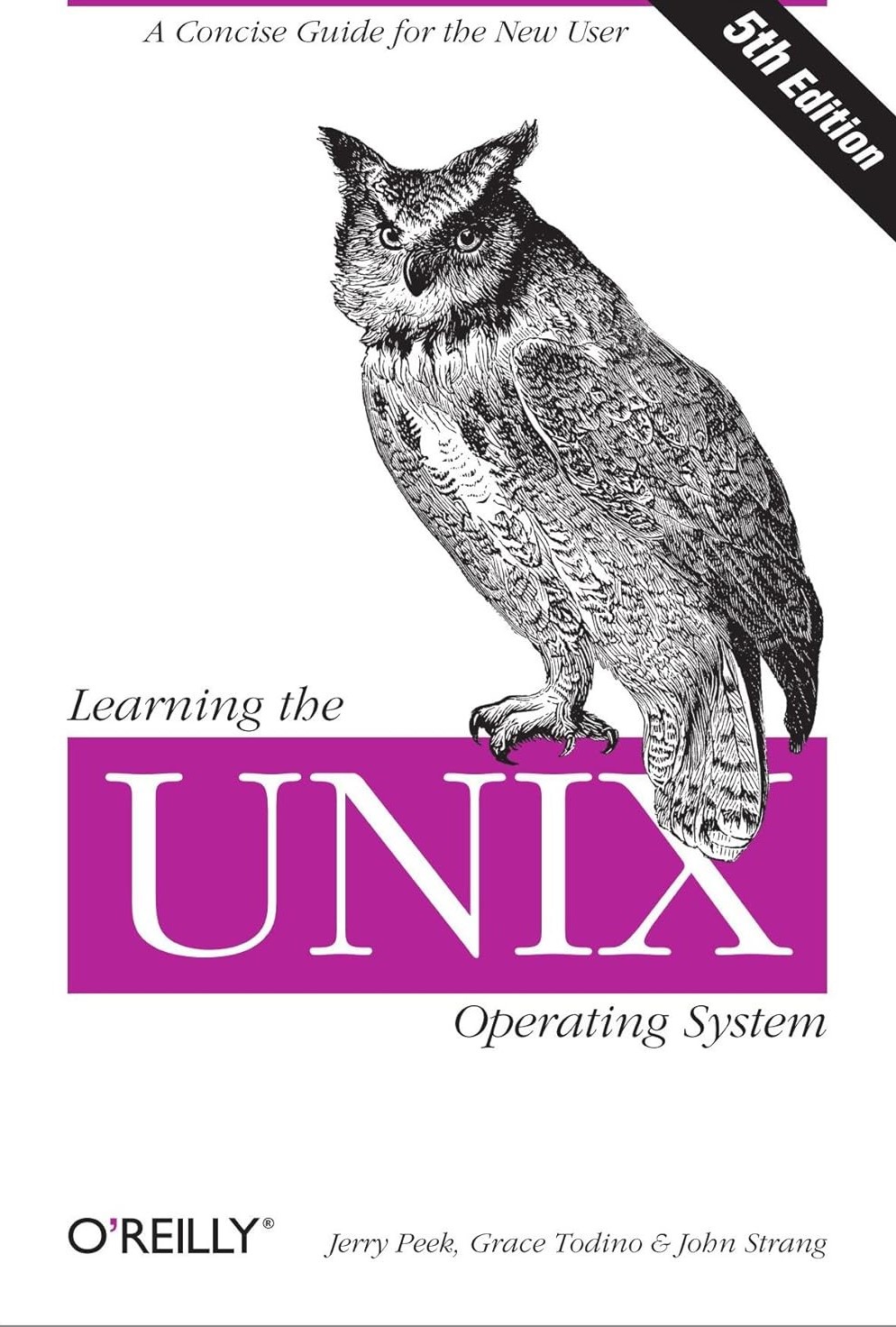](https://www.oreilly.com/library/view/learning-the-unix/0596002610/ "Learning the Unix OS Buy Page")**Learning the Unix OS - 5th Edition
**Jerry Peek, Grace Todino & John Strang ( O'Reilly, 2002 )**
This book is now over 20 years old, yet it has aged gracefully.
Roughly 90% of the information inside is still relevant today and the other 10% can be treated as a history lesson.
The reason can be found in the book's preface.
> **This book teaches basic system utility commands to get you started with Unix... We cover a commands most useful features...**
And it more than lives up to its purpose. While Linux & Unix have changed a lot over the years the command line itself hasn't changed radically. The reason why the commands shown are interchangeable is that many of the core commands are identical in terms of syntax and functionality between Unix & Linux. There are of course some differences, but they are not enough to be a problem at our current level. We won't learn about Modern Filesystems or Containers, but we will learn enough to get even more confident with working through Linux.
##### **Book Overview**
Our next step in the systems fundamentals course will be [**Learning The Unix OS by O'Reilly**](https://www.oreilly.com/library/view/learning-the-unix/0596002610/). You may treat this book as a **Practical Guide to Unix**. This book is 157 pages long and will take you 7 days to finish if you dedicate between 2-3 hours every day to work through it.
When you look at the title you will notice the word **Unix,** but don't let the word Unix discourage you. Much of what we will be going over will be regarding the Command Line Interface. Which for our purposes is practically interchangeable with Linux. Don't misunderstand, they are two different operating systems, with the key difference being that **Linux is Open-Source** while **Unix is Proprietary**
The main goal of this book is to serve as a **Practical Starter Guide**, covering the main essentials of the CLI and Unix OS. That is why this book is still remains relevant even today. While we did go through an introductory course already, that being the Linux Upskill Challenge, there are some nuances that that this book goes through that will be very helpful to us.
We'll explore the various types of commands, Windows Systems, basic File Management, I/O-Redirection and even some interesting pieces of Linux history. When I finished going through this book, I felt confident that I could start working on this roadmap and bring something interesting to the table. Although we still have a long way to go before we can call ourselves true adepts, but steadily, we are making progress.
##### **✨****Personal Note**
**( The following has been added to the overview page. But I am keeping this here as this was when I thought of the idea. )**
Throughout this journey I will do my best to be as objective as I can. However, I am still in the middle of my learning and I am only human. While technology itself is neutral, the way we use it, how we think about it, what we think is best moving forward and so on, are things that are human viewpoints. There are of course times when things are simply 0 or 1, but as you go through your own journey you will find that you will have to come up with your own definitions and reasons for doing things backed by personal preference or well researched analysis or simply that's the way things are done.
So, to carry on with that spirit I will place the **sparkling star icon✨** whenever certain notes or topics are things I am speaking my own mind on. I encourage you to come up with your own analysis or thoughts on those topics.
##### **Goals of this Book**
- Gain a basic understanding of the various use cases for **Linux** as well as cover its **strengths and weaknesses**
- Learn how to find the **current shell** you're working in: **ps $$** & **echo ****$SHELL**
- Cover the formatting of Unix command arguments
- Go over Jobs and how to: show, restart, stop and kill them: **jobs** | **fg** | **ctrl-z **| **kill %**
- Cover Window Systems going over virtual consoles, terminal windows vs alphanumeric terminals
- Root vs relative path names
- 3 permission types of files and directories
- Understand group ownership and how to give specific groups access to files and directories
- How to remove files with spaces between them
- Cover the Primary Wildcards **( \*, ?, \[ \] )**
- Go over the main ways to find files in Unix **( find | locate )**
- I/O Redirection with: **( >, >>, <, |, grep, sort )**
- Pager program commands **( less | more | pg )**
- Examine CLI web browsers and their use case
##### **Course Notes**
I quite enjoyed making the notes for this book since it led me to making several web searches on various different topics about Linux both old and new.
- **✨Why should we use Linux?**
- The FOSS nature of the OS allows groups to have a very powerful tool. Making it a great choice for smaller teams or groups without much money.
- Linux is also made to be run on practically anything. From the weakest hardware to the most powerful, although Linux's best potential can be extracted on more powerful systems.
- As another note, Linux supports both windowed and non-windowed systems.
- **Chapter 1 - Getting Started**
- You can find the current shell you are working in with **ps $$** & **echo ****$SHELL**
- **whoami** - Will show the username you are logged in as
- **who** - Will show a list of users that are logged on
- There are control characters you can use in Linux. The most common of which is **CTRL+C** & **CTRL+D**
- **CTRL+C ( ^C )** : **Cancel the currently running process or command**
- **CTRL+D ( ^D ) : Marks the End-Of-File. Will have no effect if the program isn't reading input from the terminal. If used in a shell terminal it will exit.**
- **Unix Command Arguments**
- **command** option(s) filename(s)
- Options modify the way a command works
- Can be letters **( -ltr )** or words **( --delete )**
- At times there will be special exceptions for certain commands
- **Daemon** - May also be called a background process. It is a Unix or Linux program that executes in the background. The main distinction between a daemon and a job is that a daemon operates autonomously, performing tasks without user intervention.
- **Job** - Any programs that are started interactively by the user that don't detach in the background, ( ie. becoming a daemon ) are jobs.
- **jobs -** shows running jobs in the current shell
- **ps** - lists running processes
- Jobs in the foreground can be stopped with **ctrl-z**
- **job\_name & -** starts a job and places it as a background process
- **fg -** places a background process into the foreground
- **kill % job\_num** - sends a signal to kill a job or process
- **Chapter 1 - Summary:** In this chapter we covered the basics of working in a Unix environment. We learned about **processes**, starting them and stopping them, We also briefly covered **control characters** and some **command syntax**
- **Chapter 2 - Using Window Systems**
- Alphanumeric terminals handle a single session on a single screen
- Virtual consoles exist as a way to get Fullscreen log-in sessions on the same OS. You may switch between consoles with **Ctrl-LeftAlt-\[F1…F6\]**
- Unix Systems have windows managers. One of the most important types being terminal windows
- A Unix session inside a shell prompt is a terminal window
- Terminal windows allow us to interact with Unix from a shell prompt
- Use **Ctrl+Alt+F6** to get a non-graphical log-in prompt
- **Chapter 2 - Summary:** In this chapter we learned about the history of windows terminals. And we also covered various ways to deal with crashing windows
- **Chapter 3 - Using your Unix account**
- A file is the unit of storage in Unix. Files can hold anything from Text to programs, digitally encoded data, etc.
- Any time we log into a Linux/Unix machine we will start in the home directory which is also our working directory
- All directories in the Unix system are organized into a tree-like hierarchy structure.
- **Networked Filesystems** allow us to access a remote computer's files and have them appear in our computer's directory tree.
- **Absolute** vs **Relative** Paths
- **Root starts with a slash ( / )**
- **Relative path names never start with a ( / )**
- Unix/Linux filesystems can also hold things that aren't directories or files.
- **Symbolic-links, FIFOs, & sockets**
- **Sysadmins** are users that have full control over Linux files
- There are 3 permission types to files and directories
- **Read | Write | Execute**
- Both files and directories have their own permissions
- **File Access Permissions | Directory Access Permissions**
- This book goes over **chmod** and **chattr** as well. You can find this information in the **Linux Upskills Challenge** [**Notes**](https://lab-book.01blu3.com/books/systems-programming-fundamentals/page/the-linux-upskills-challenge#bkmrk-course-notes) Section.
- Protecting and Sharing Files
\- Group ownership is the way to give certain groups of users access to files or directories
- List all groups: **groups; compgen -u; compgen -g;**
- Add groups: **sudo addgroup local\_group**
- Add users to groups: **sudo usermod -a -G local\_group user\_name**
- Change group owner: **sudo chgrp user\_name target-file **
- Change owner: **sudo chown user\_name dirname**
- Make Sub-Files and Sub-Directories have same group as parent: chmod **g+s dirname**
- Profile customization can be done through the following:
**( .login, .cshrc, .tcsrhc, .bashrc, .bash\_profile, .bash\_login )**
- **PATH=** **>** Tells the shell which directories to search for Unix Programs
- **umask** **>** Sets the default file permissions assigned to all files you create
- **Chapter 3 - Summary:** We have now gone over **file management**, **profile management** and the **PATH** variable. And we are now aware about network file sharing
- **Chapter 4 - File Management**
- In Linux everything can be viewed as a file. Directories themselves are simply a special type of file
- Removing files with spaces between them
- **rm a strange name**
- **rm "a strange name"**
- The primary Wildcards
- **Asterisk : \***
- **Question Mark : ? **| Covers single characters
- **Square Brackets : \[ \]** | Covers a range of single characters
- The most popular text editors are **vim**, **emacs** & **Pico**
- Text editors are made to work with plaintext files.
- Unix makes us of plain-text files in various locations, from the Input and Output of Linux programs to shell setup files & shell scripting
- Commands to find files in Unix
- **find** -> simple subdirectory search
- **locate** -> GNU program that requires setup
- **Chapter 4 - Summary:** We interacted in various different ways with the Unix file-system, covering popular text-editors, and the powerful use-cases for wildcards
- **Chapter 5 - Redirecting I/O**
- Covered the I/O operations \[ > , >> , < , | , grep \]
- **>** - Output Redirection Operator
- **>>** - Append Redirection Operator
- **<** - input redirection
- **|** - Pipe Operator
- **grep - Looks for patterns**
□ **-v** : lines that don't match pattern
□ **-n** : matched line and line #
□ **-l **: names of files with matching lines
□ **-c** : count of matching lines
□ **-i** : match either upper/lower case
- **sort - Arranges lines of text numerically or alphabetically**
□ **-n** : sort numerically
□ **-r** : reverse sorting order
□ **-f** : sort upper- and lowercase together
□ **+x** : ignore first x fields when sorting
🔹**( +4n )** **-rw-rw-r-- 1 user group** **1605**
🔹**+4n - skips over 4 fields, sep. by blank spaces**
- "**> filename**" - Programs output is diverted from the standard output to the named file. **Overwriting the previous output.**
- Careful about **overwriting** target file!
- Also known as **clobbered**
- **">> filename"** - Programs output is diverted from the standard output to the named file. And **appends to the file** as opposed to overwriting it.
- **Pager programs** - **less, more, pg**
- **Chapter 5 - Summary:** Covered the various redirection operators and learned about the power of **piping** & **filtering**. Pager programs and Filter operators like **grep** and **sort** are a powerful tool that allow us to organize and access information more effectively
- **Chapter 6 - Using the Internet and Other Networks**
- There are various ways to access remote computers. You could use **telnet, ssh, rlogin** and **rsh**. However, the main standard today is **ssh**. Though there may be times when you will need to use older protocols.
- It is also possible to open windows through remote connections. This is known as
**X-Forwarding**
- There are programs out there called CLI Web browsers. The most popular of which are w3m and Lynx. These tools allow you to browse online resources through the command line interface without needing a GUI.
- There exist CLI tools to transfer files between systems, for remote systems you will need a networked filesystem location,
- **scp & rcp**
- **scp** ( secure copy )
- **rcp** ( remote copy )
- **Syntax:** **scp**||**rcp** hostname:pathname
- **FTP**
- More flexible and secure than **rcp** but much less secure than **sc****p**
- **Syntax****:** hostname:ftp
- **Commands**
□ **Copies files Local -> Remote**
🔹**put** filename | **mput** filename
□ **Copies files Remote -> Local**
🔹**get** filename | **mget** filename
□ **prompt**
□ **cd** pathname - change working dir. on remote pc
□ **lcd** pathname - change working dir. on local pc
□ **dir** - list remote pc's directory
□ **binary** - tells ftp to copy files w/o translation. Preserves, \[ picture, sound or other date \]
**□ ascii **- Transfers plaintext files, transferring data if needed Covers \[ MS <-> Unix Transfer, etc. \]
- ✨ I've noted in the book overview that **"Learning the Unix OS"** would also serve as a brief history lesson on some old topics. And this is where you'll see a lot of that. Don't get me wrong Usenet is still around and quite popular in many circles. The same can be said for **IRC**, we also have **Matrix** as a new option. However, **talk** can be considered to no longer be in use although some distributions still ship with it. In regard to **Usenet**, **IRC** and **Matrix** I do recommend you look more into it. It's certainly quite interesting and could be worth your time.
- **Electronic Mail**
- You're able to send E-Mails in Unix & Linux through the shell prompt
- One of the most popular programs to do this was made by Berkley
- **Usenet News**
- WW distributed system available to computers.
- In order to read Usenet groups, you will need a news client
□ Popular readers: **slrn**, **nn**, **trn**
□ Usenet Groups are what came before forums
- **Interactive chat**
- Instant Messaging, in the days when AOL and Jabber took off
- **talk** & **IRC**
- **Chapter 7 - Multitasking**
- Unix is able to do many different jobs at once
- However, the reality is that each processor can only execute one command at a time. So, the OS divides the processor's time between tasks quickly, so it looks as is everything is running at the same time.
- This is also known as **multi-tasking**
- In order to run a program in the background, add an **&** character at the end
- The shell then assigns and displays a **Process ID (PID) number** for the program
- To put several processes in the background, use the following **syntax****:**
- **(process1; process2) &**
- With Linux you can specify command-line options for windows
- **Checking on a Process**
- **ps** - allows you to see how long a process has been running
- **tty** - shows the name of the terminal where a process is running
- **ps □ Process ID (PID)**
🔹 A unique number assigned by Unix to the process
**□ Terminal name (TTY)**
🔹 The Unix name for the terminal from which the process was started
**□ Run time (TIME)**
🔹 The amount of computer time **(in minutes and seconds)** that the process has used
**□ Command (CMD)
🔹The name of the process
- The **kill **command aborts a process
- **kill PID(s)**
- **sleep n**
##### **Required Reading**
Our required reading for this section will be a mix of reviewing old commands with learning new ones. We begin by covering some particularly useful List and System/Network monitoring commands. For those I recommend using the **man **page in order to get more comfortable with using the **man** command. After that we'll cover some articles on the Digital Ocean and RedHat community blogs that cover some more useful commands.
✨Finally we end with a more philosophical article, technical ability is important but I encourage you to consider the abstract side as well. Primarily questions like: "Why is Unix & Linux designed this way?" "What the point of FOSS?" and musings of that nature.
**( Self-Guided )** - Look into the following commands and go through them by using the **man** command. Read the **Name, Synopsis, Description** and go over some of the **Options**, then try the commands out. For system memory commands I recommend paying attention to the **-h** flag which shows displays the output in a human readable format. After you read the command's man page if it's use-case or meaning is unknown to you, do a web-search for more information.
- **List commands**: **ls, lsusb, lscpu, lshw, lsipc, lslocks, lslogins, lsmem, lsns, lsof, lspci, lsusb**
- **System Monitoring Commands:** **top/htop, free, df, ps, pkill**
- **Network Utilities:** **ping, traceroute, dig, nslookup, host, hostname, arp, ifconfig, iwconfig, route**
**( Article ) Digital Ocean Community: [Top 50+ Linux Commands](https://www.digitalocean.com/community/tutorials/linux-commands) by e...f** - By this point we have gone over most of the commands listed in the Digital Ocean article. I recommend reviewing any commands you're not confident in and pick up any that you may not know.
**( Article )** **RedHat - Enable Sysadmin: [Linux Commands: du...](https://www.redhat.com/sysadmin/du-command-options) by Tyler Carrigan **- The **du** command is an excellent tool that will give you insight into how your storage is being used. This short article will go over the most used flags and how to make the most of them.
**( Article ) RedHat - Enable Sysadmin:** **[How to Manage Linux Permissions...](https://www.redhat.com/sysadmin/manage-permissions) by Damon Garn** - Managing user permissions is an essential task for any sysadmin. User access control is an essential security feature meant to protect data by giving only certain users access to data and resources based on certain contexts. If you still feel unconfident about managing permissions focus on this post and make sure to understand **absolute/octal mode.**
**( Article ) Linux-Databook: [The Unix and Linux Philosophy](http://www.linux-databook.info/?page_id=2178)** by **dboth** - Every Operating System has it's own philosophy. To steal the quote listed in the post.
> An operating system, by its nature, embodies the philosophy of its creators…" **-** **Mike Gancarz**
Essentially any OS from Linux to Windows to macOS has their own way of doing things. It's Linux's philosophy that makes it so powerful in a capable users hand. As always I recommend you take away your own conclusions from this article. You may agree with much of it now and maybe come to disagree with much of it later and vice versa, even I don't agree with every tenet.
**( Article ) itsfoss: [21 Terminal Shortcuts ](https://itsfoss.com/linux-terminal-shortcuts/)by Sagar Sharma** - Lastly, we cover **Terminal Shortcuts**. They might not seem like such a big deal but getting the hang of a couple shortcuts can make a big difference for your efficiency and speed leading to substantial quality of life improvements.
##### **Recommended Reading**
**( Video )** **[Unix and Linux History](https://www.youtube.com/watch?v=EZMA3Ge144U) by Jon "maddog" Hall** - Jon Hall gives a great rundown on Linux and Unix history in the 50 year period from 1969 to 2019. It's an informal recount mixed with personal experiences and that's exactly what makes it such a compelling watch.
**( Video )** [**The Rise of Unix. The Seeds of its Fall.**](https://www.youtube.com/watch?v=HADp3emVABg) **by Asianometry** - A great brief 16-minute video that covers the rise of Unix. Started in the legendary Bell Labs by Ken Thompson and Dennis Ritchie. As a personal note, if you're interested in video essays on technology, economics, business and politics I would highly recommend you explore more of Asianometry's videos.
**( Article )** [**The Early Days of Linux**](https://lwn.net/Articles/928581/) **by Lars Wirzenius** - In keeping with the theme of historical reading the following article goes over some of the very first days of Linux. Lars witnessed the birth of Linux and he also helped fix some of its first issues.
**( Short Rant )✨[How does the Unix Philosophy matter in modern times?](https://www.reddit.com/r/linux/comments/mjmfd1/comment/gtbu2ep/?utm_source=share&utm_medium=web3x&utm_name=web3xcss&utm_term=1&utm_content=share_button) by dlarge65 -** There are many diverging opinions on the Unix philosophy. Some say it is over-idealized and irrelevant in the modern day, others argue that there was maybe a philosophy at one point but practicality won over and so on. While I'm still very much new to Linux I enjoyed this rant which takes on a more balanced stance and viewpoint on the Unix Philosophy. It is too early to give my thoughts on the matter but moving forward I plan on taking the balanced approach.
#### **Section Projects**
##### **Project 2 - Your First Wargame -> [Over The Wire: Bandit](https://overthewire.org/wargames/bandit/bandit0.html)**
[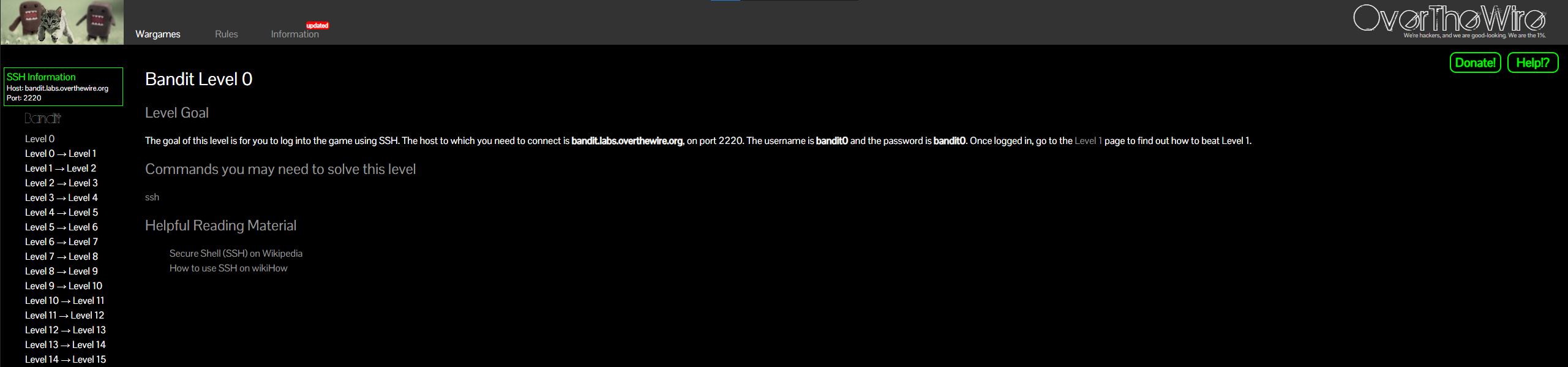](https://overthewire.org/wargames/bandit/bandit0.html)
**Wargame vs CTFs** If you're like me, you probably thought that the term wargame and CTF were interchangeable but they are 2 different things although they are related.
To Summarize: **Capture The Flag (CTF)** - **Time Limited** / **Wargame** - **Not Time Limited
Capture The Flag (CTF)** - CTFs are exercises where participants try to find strings, called "flags" which are hidden inside purposefully vulnerable programs or websites, **Wargame** - A cyber-security challenge where competitors must exploit or defend a vulnerability in a system or application to gain or prevent access to a computer system.
In essence CTF's are time-based competitions where people try to come out on top, whereas wargames aren't really time limited or competitions, although they do have CTF style challenges.
For this project your job is to go through **The** **Beginner Wargame - Bandit**
**Why a wargame?**
First off, they are very fun! I was always a bit hesitant to read through man pages, but I found myself going through documentation and scouring man pages all to get that next flag.
Secondly, they can be very challenging. You'll be forced outside of your comfort zone quite often. Bandit will lead you to explore concepts in networking, compression, decompression, hex dumps, the shell and more.
**Bandit** Bandit is a wargame aimed at beginners. Wargames are usually split into levels. We start at Level 0 and try to reach the end.
**Why Bandit?** I was pretty hesitant about doing CTFs, they tend to have a heavy cybersecurity focus, which is important, but at our stage can be a distraction.
However, **bandit is the ultimate Linux Lab.**
\- You will use a variety of new flags for commands you commonly use
\- You will get a better grasp on user and file permissions
\- You will become more comfortable google searching for Linux information
\- You will be forced to read the man pages
\- You will cover Networking Topics, Data encoding, compression and decompression
\- You will be introduced to git, and its commands
\- You will go over shell and CLI behavior
After doing Bandit, I am much more comfortable reading documentation, and I have a better idea on the skills I'm missing as a Linux user. You'll learn a lot doing your first wargame and I hope you'll have as much fun working through it as I did.
##### **[Bandit Level - 0](https://overthewire.org/wargames/bandit/bandit0.html)**
# Linux Journey
##### **Course Overview**
##### **Goals of this Course**
##### **Course notes**
##### **Required Reading**
##### **Recommended Reading**
#### **Section Projects**
##### **Project -**
# Learning the bash Shell
# UNIX and Linux System Administration Handbook
# The Debian Admin's Handbook
# Linux Fundamentals Capstone Project
# Networking Fundamentals
# Intro to Computer Networks
# Cisco CCNA
# Network Warrior
# Practical Packet Analysis
# Core 5G and Beyond
# Networking Fundamentals Capstone Project
# Intro to Programming
# Python Programming
# Automate the Boring Stuff with Python (Optional)
# Intro to MySQL
# Git
# Intro to Programming Capstone